Table service without the queue for the till
Guests order a starter, then come back for dessert from the same code. Every ticket prints with the table, so food goes to the right place first time.
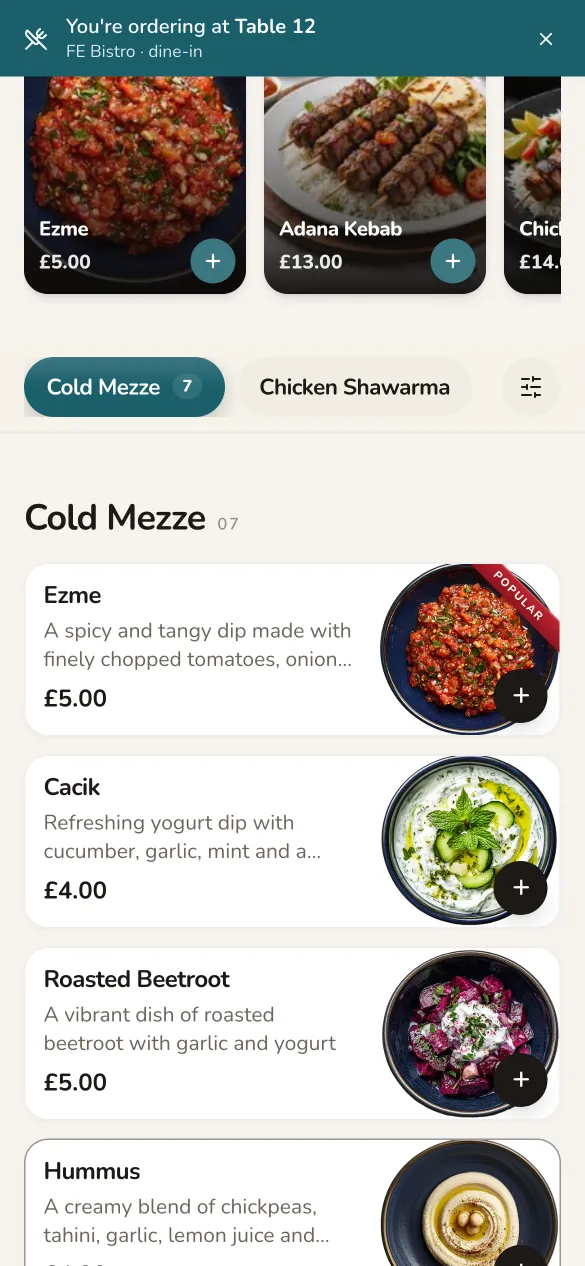

Guests scan the code where they sit, order and pay on their own phone. The paid order lands on your kitchen screen and prints with the table or room on the ticket. No app to download, and 0% commission.
From £40 a month, no VAT added. 14 days free, no card to start
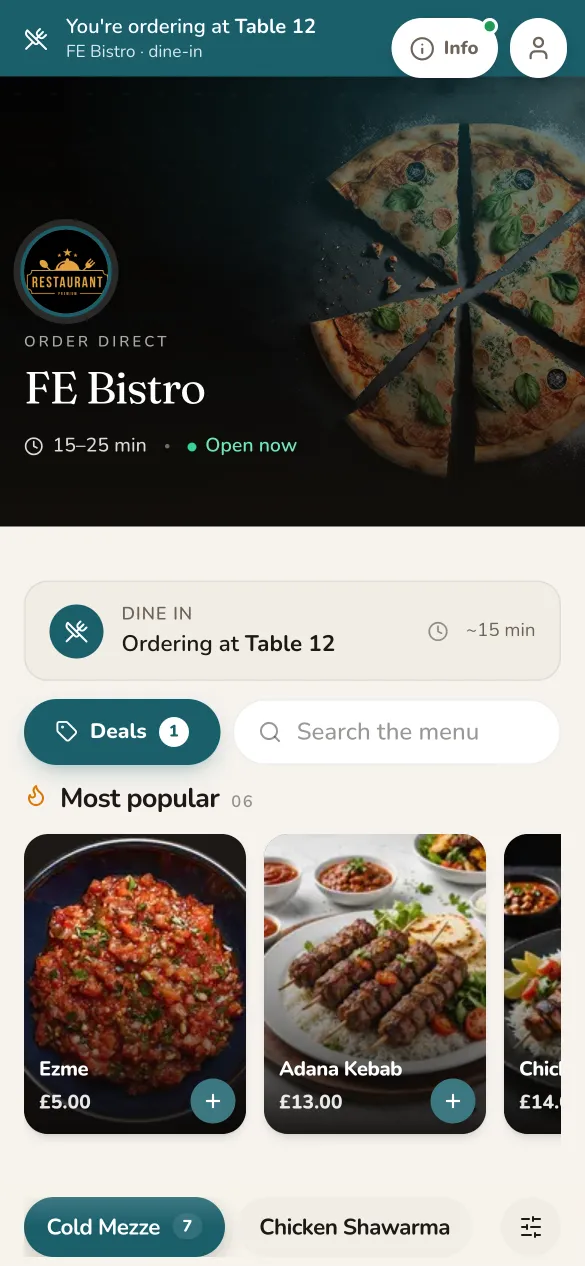
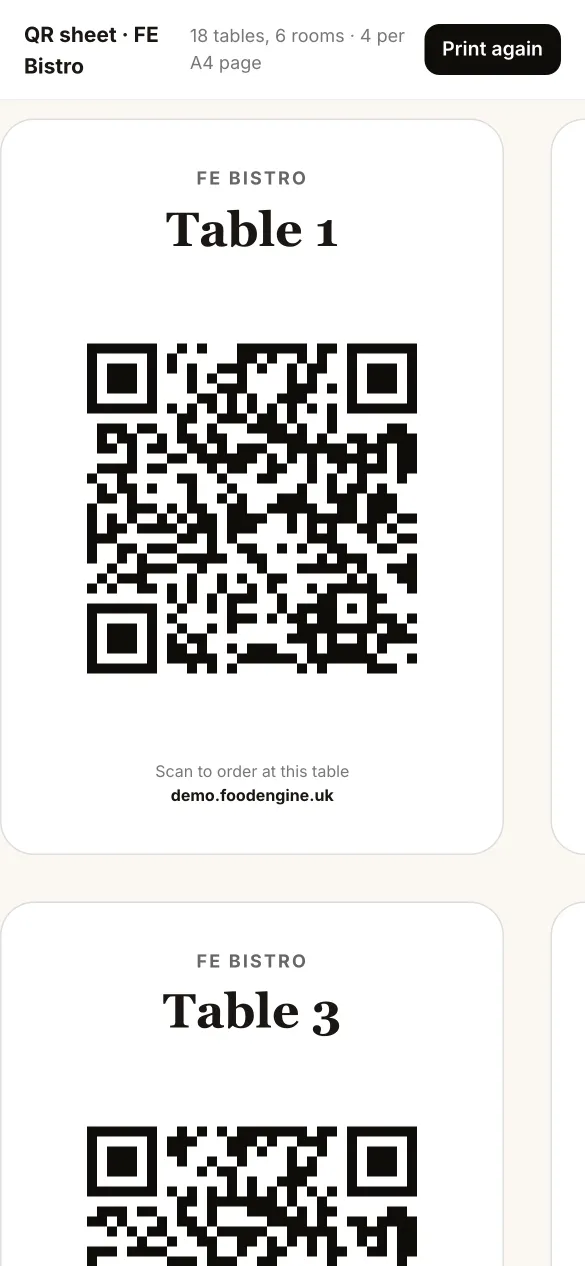
Add your tables in the dashboard, print a code for each one and stand it on the table. Each code knows its own table, so every order arrives with the table's name on it. Bar stools, window seats and garden benches work the same way: you name the spot.
Guests order a starter, then come back for dessert from the same code. Every ticket prints with the table, so food goes to the right place first time.
Name each code after the spot it sits on, like Window 3 or Sofa 2. The queue at the counter gets shorter and the orders still come through in turn.
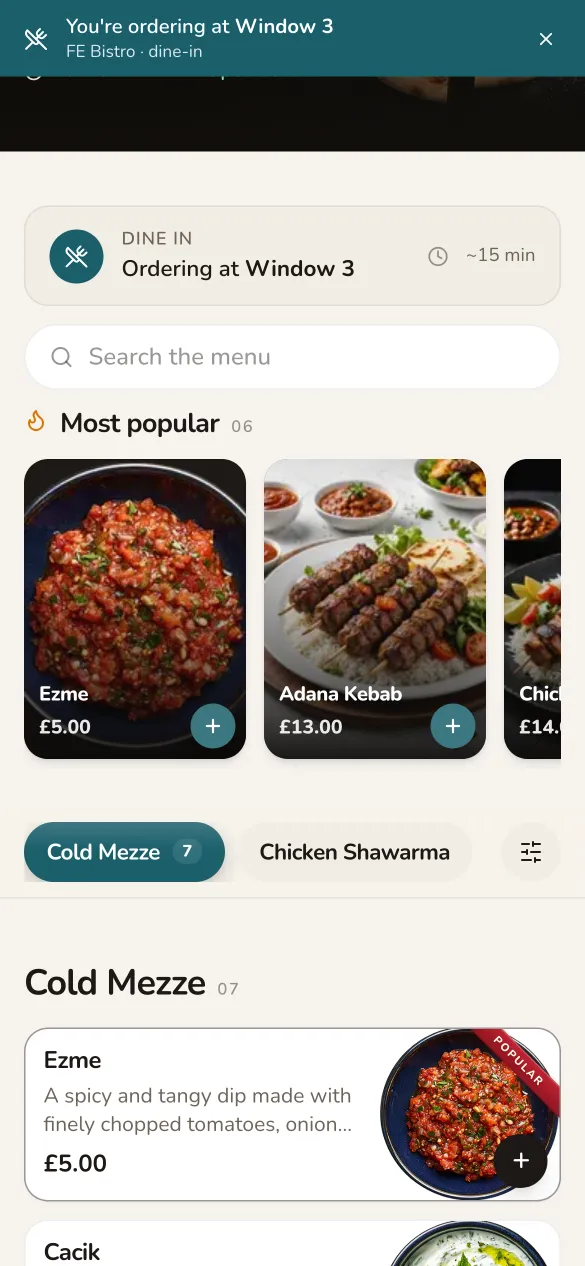
Drinks sit beside the food in one basket. The order reaches the bar already paid, with the spot on the ticket. Your team still checks ID when they serve.
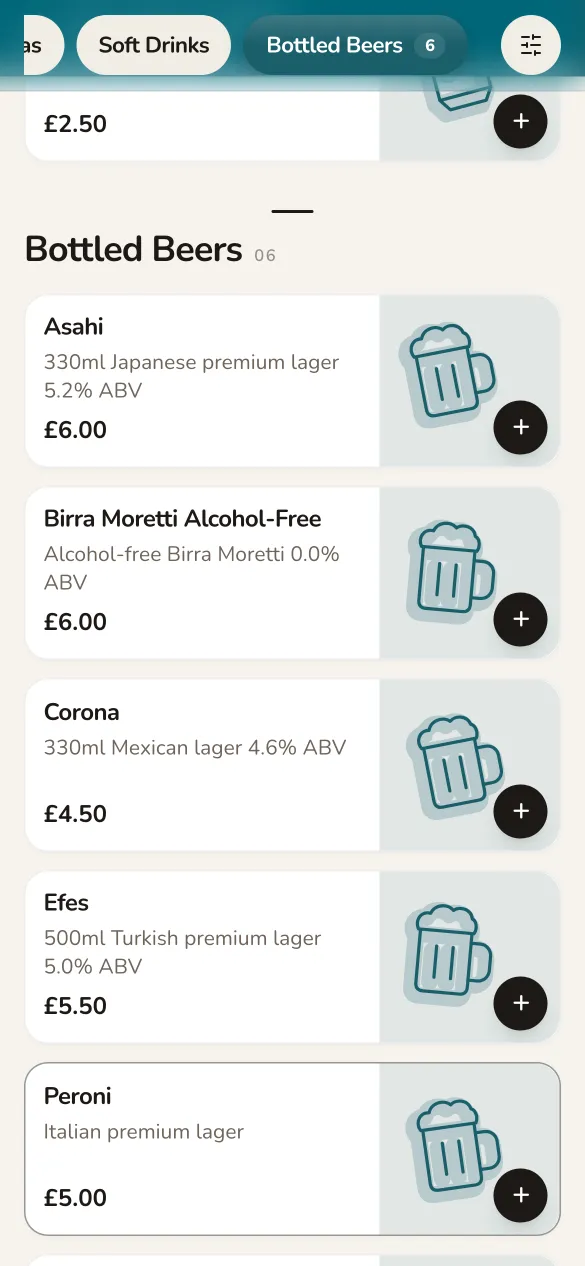
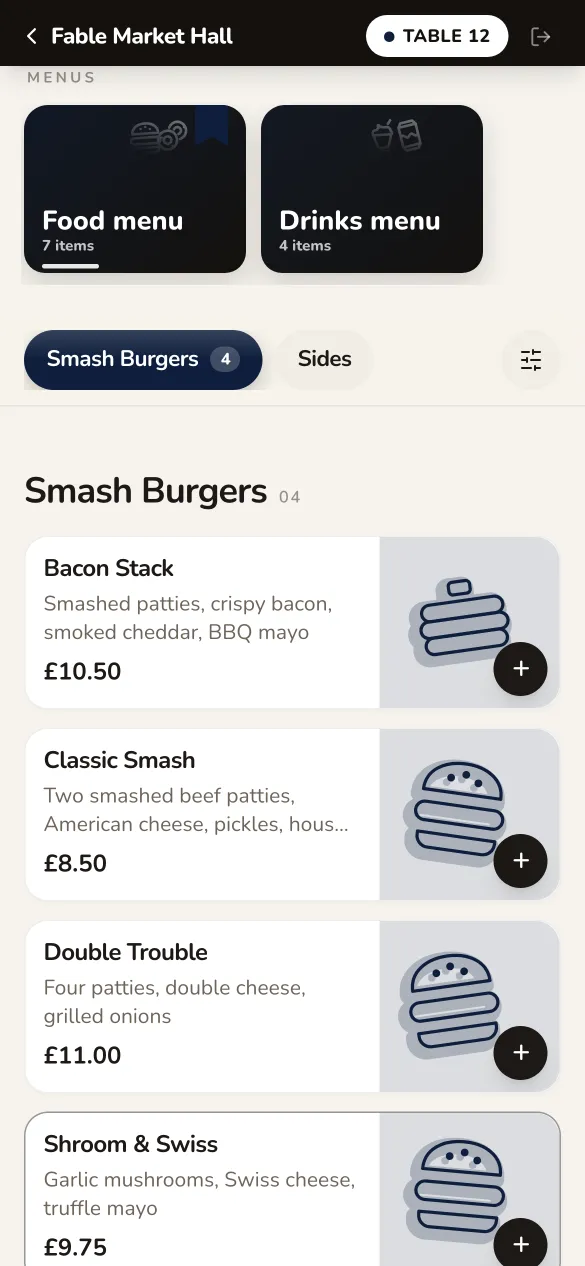
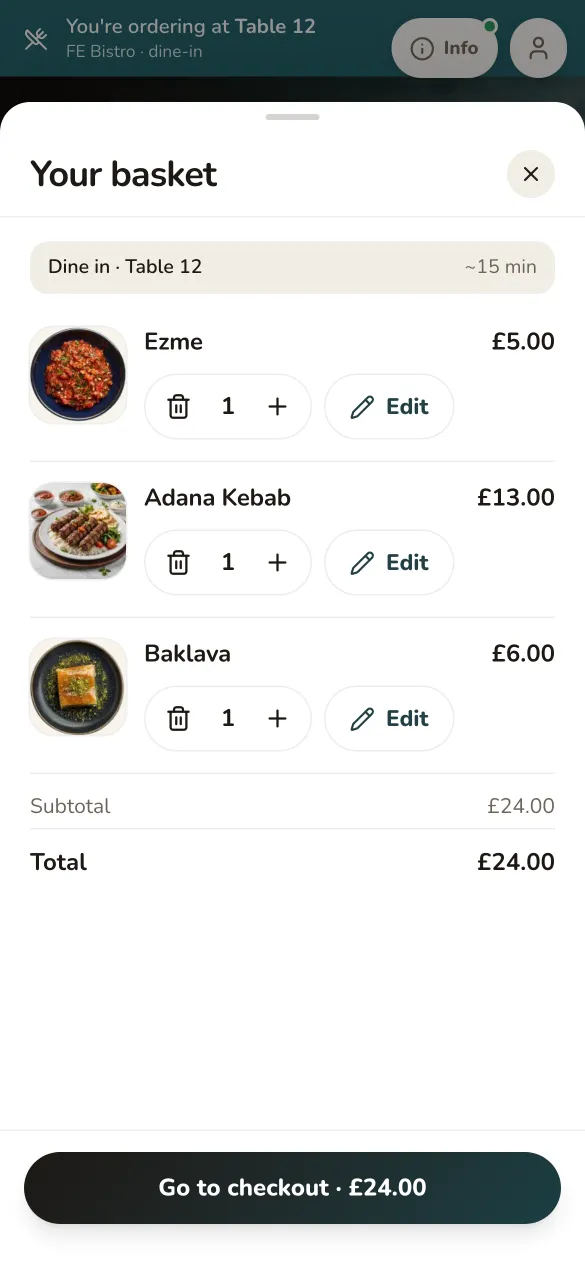
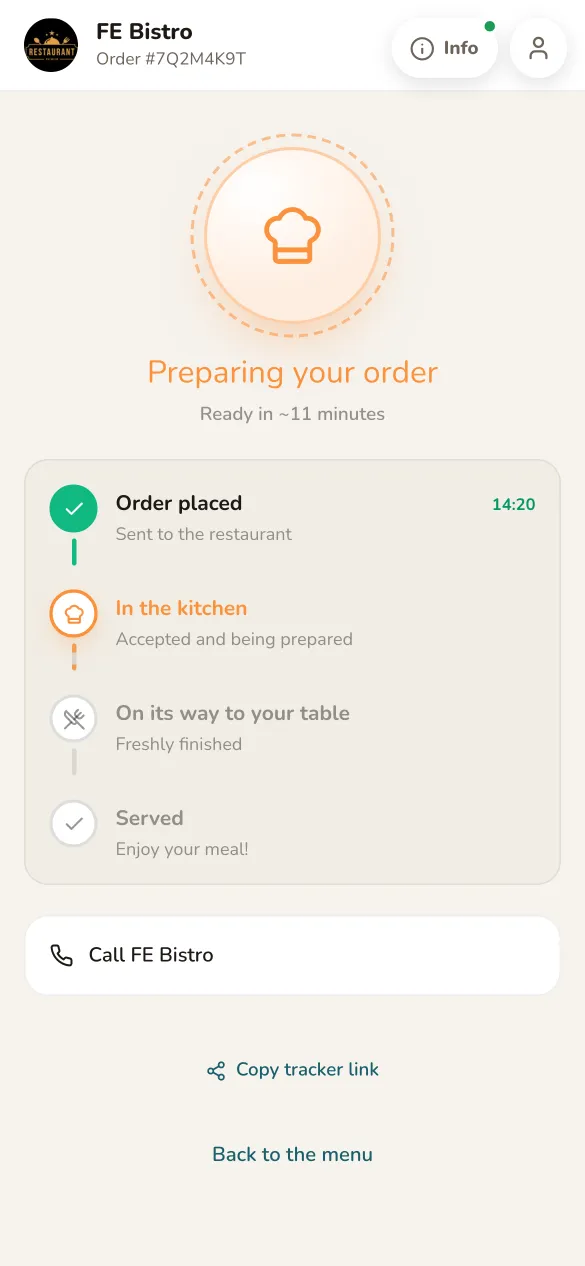
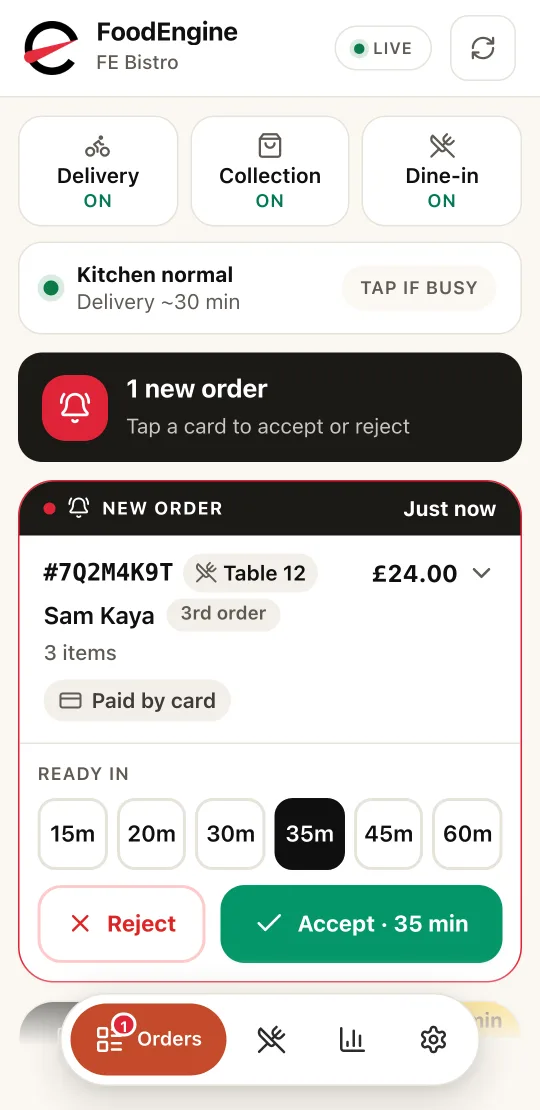
One order, followed the whole way. The table's name travels with it: from the code on the table to the guest's phone, onto your kitchen ticket and back to the table. These are the real screens, on an example menu.
The code knows which table it is on. The guest points their camera at it and your menu opens in the browser, with nothing to download.
Your menu, your photos and your prices, with the table already set. Card, Apple Pay or Google Pay, on the same page: there is no tab to open and no bill to chase.
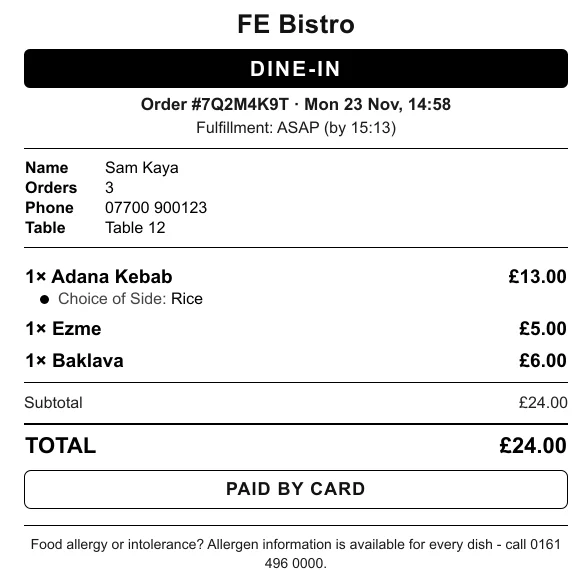
The paid order lands on your kitchen screen and prints with the table on it, so the food goes to the right place first time.
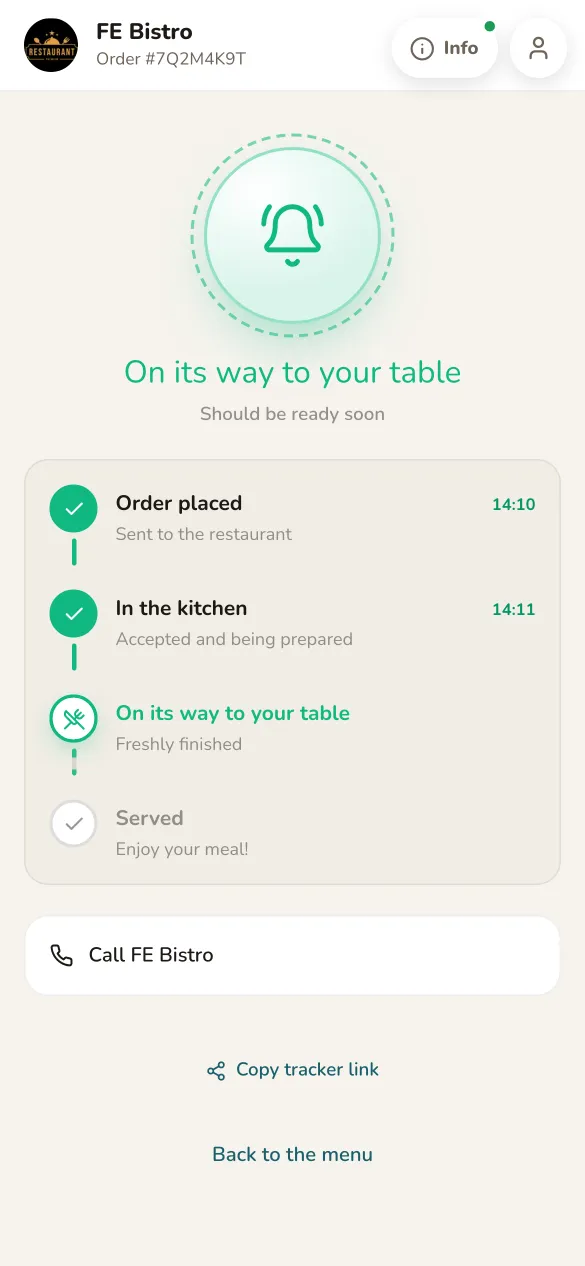
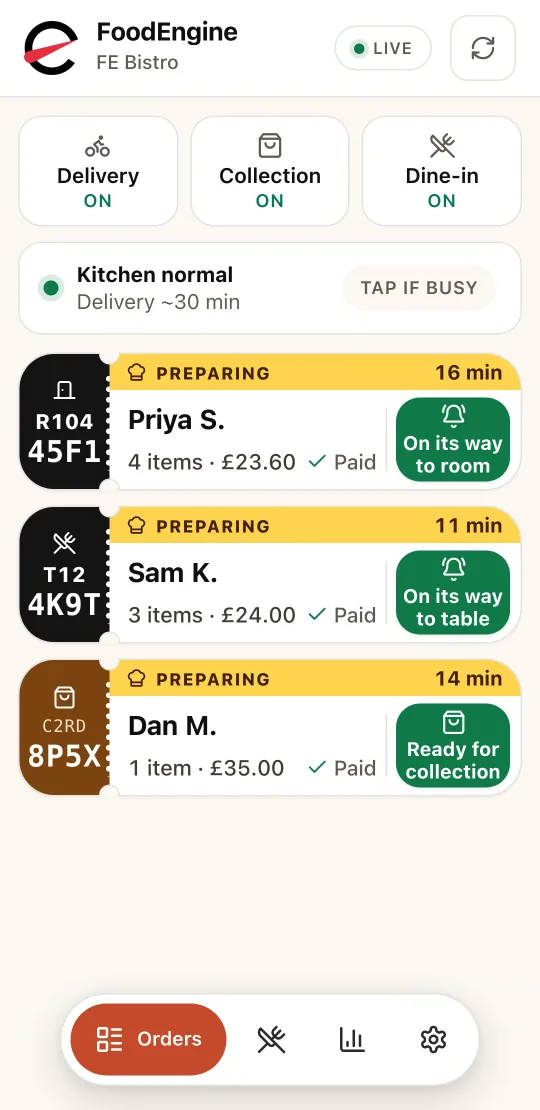
The guest's phone moves from In the kitchen to On its way to your table as your team taps it through. A second round needs no second scan.
Table 12, from the code on the table to their phone, onto the ticket and back to the table
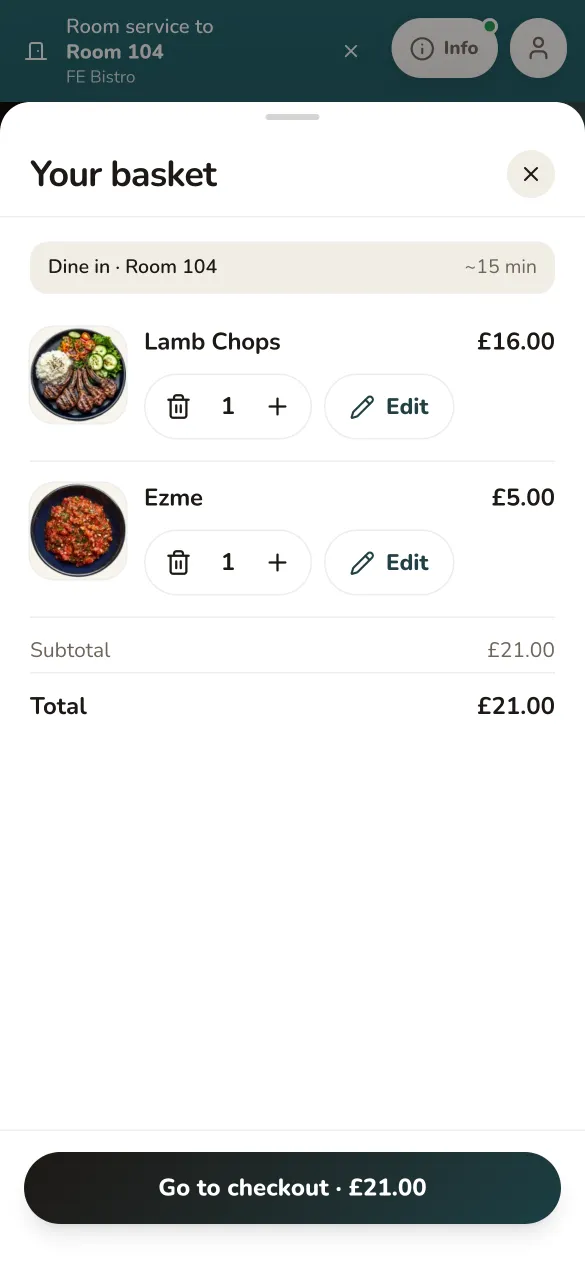
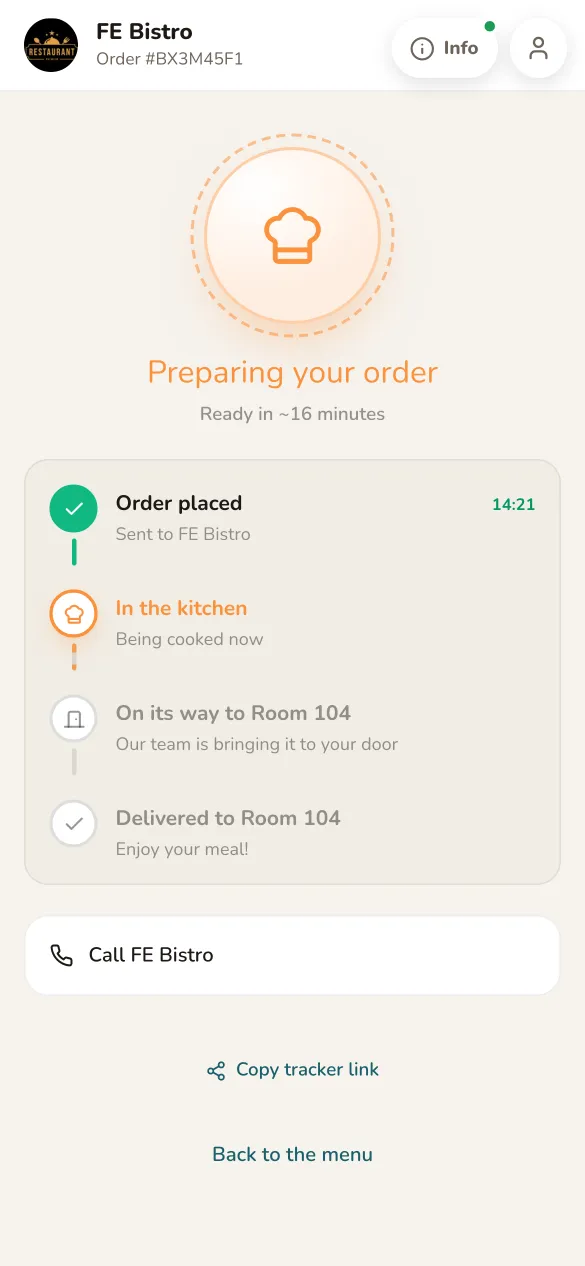
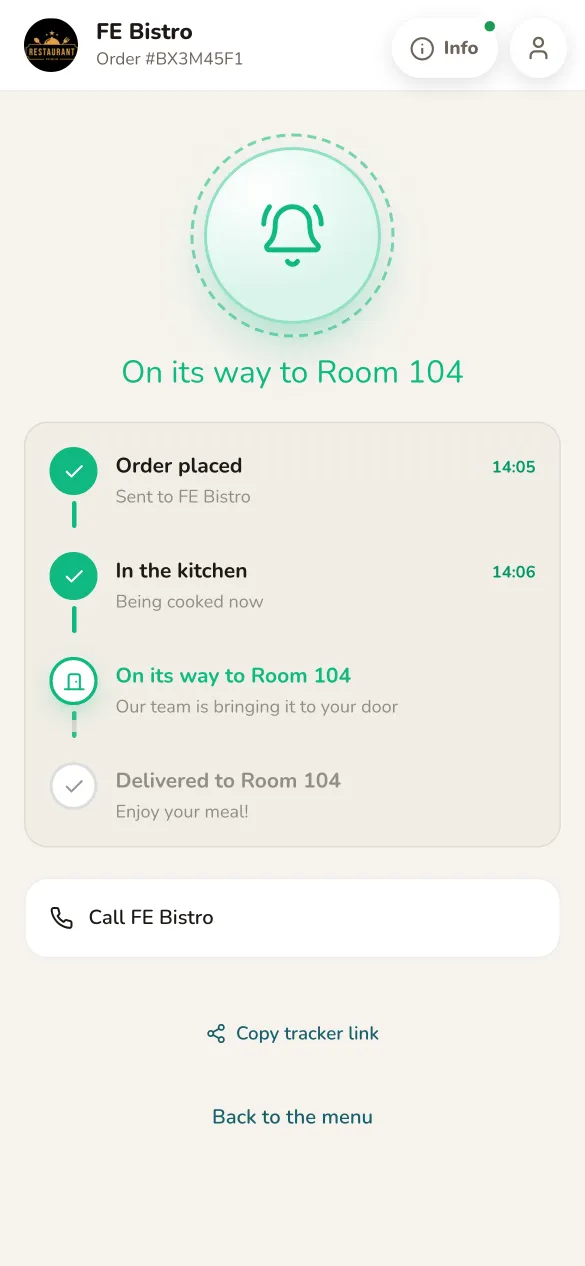
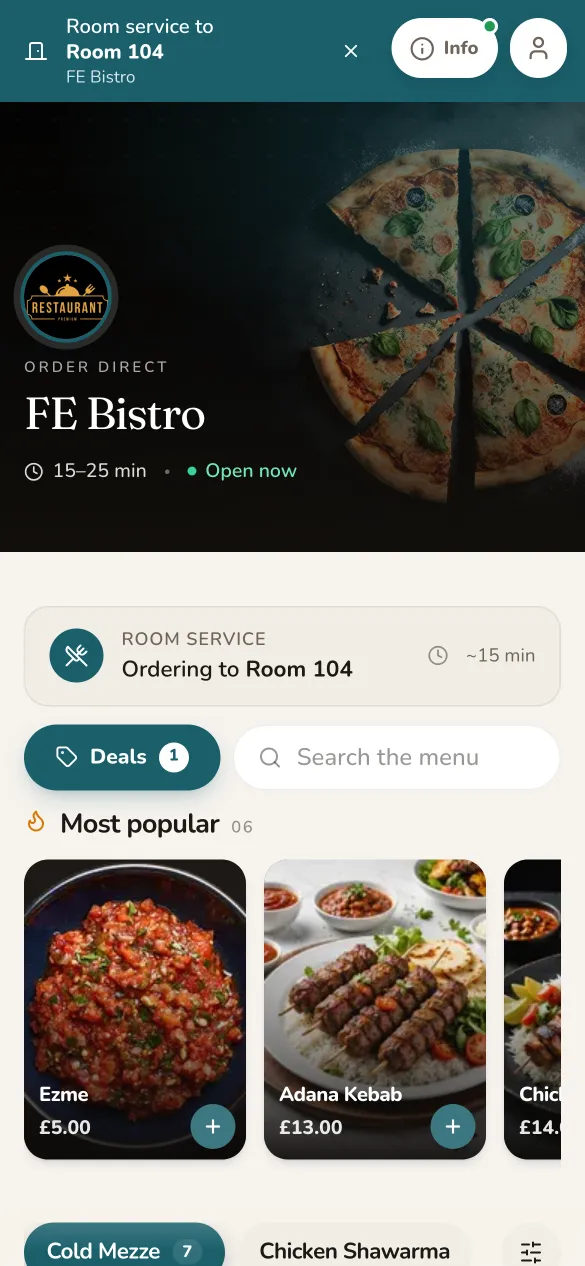
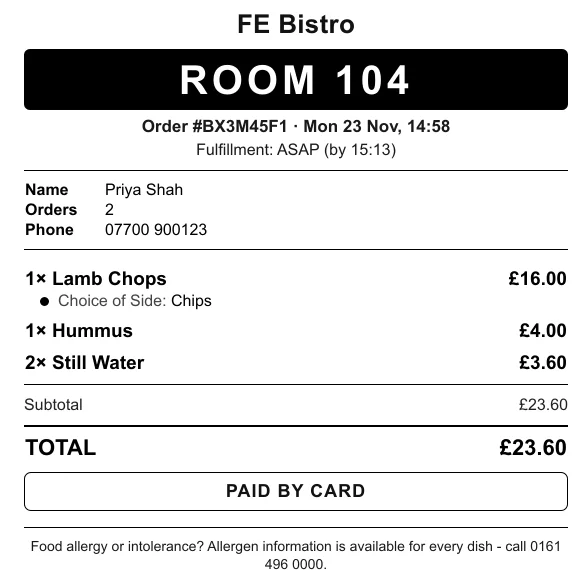
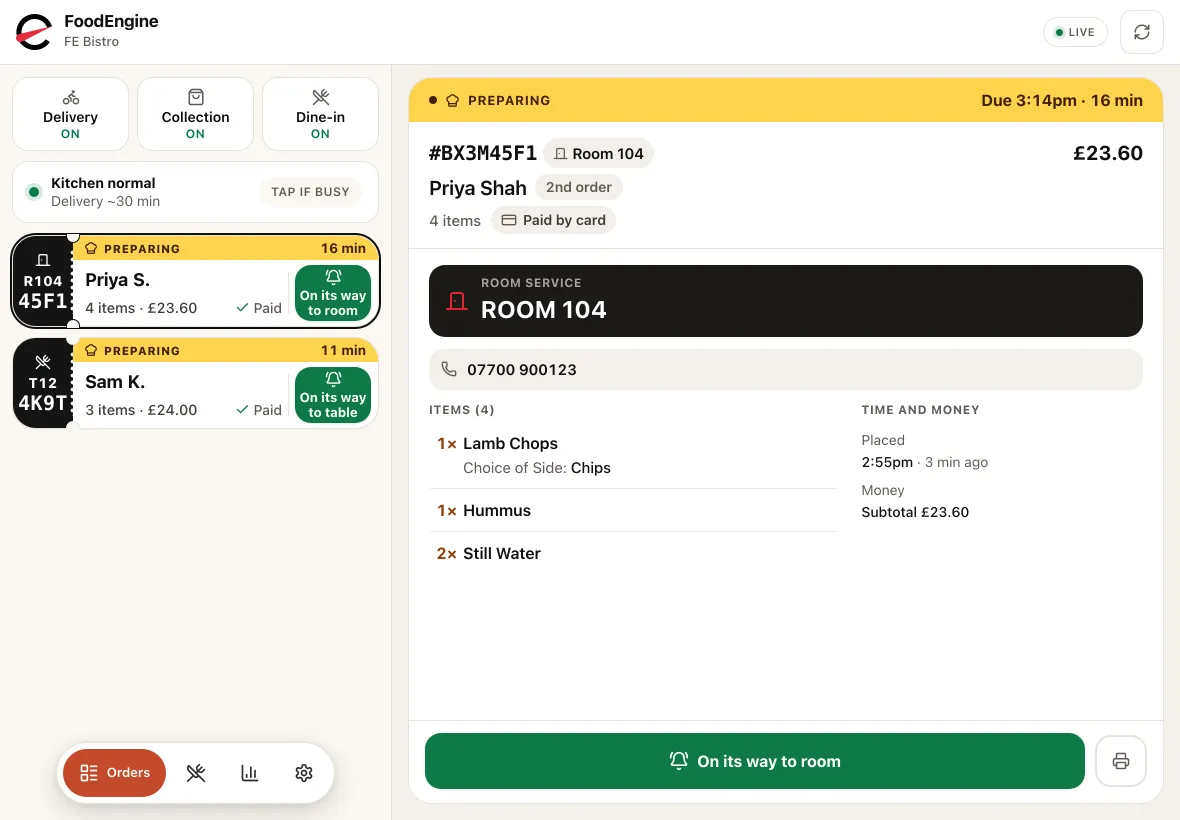
Put a QR card in every room. The guest scans it, sees your room service menu and pays by card. Your kitchen sees Room 104 on the screen and in a band across the ticket, and the guest follows the order to their door: On its way to Room 104, then Delivered to Room 104.
Early access: we switch it on hotel by hotel
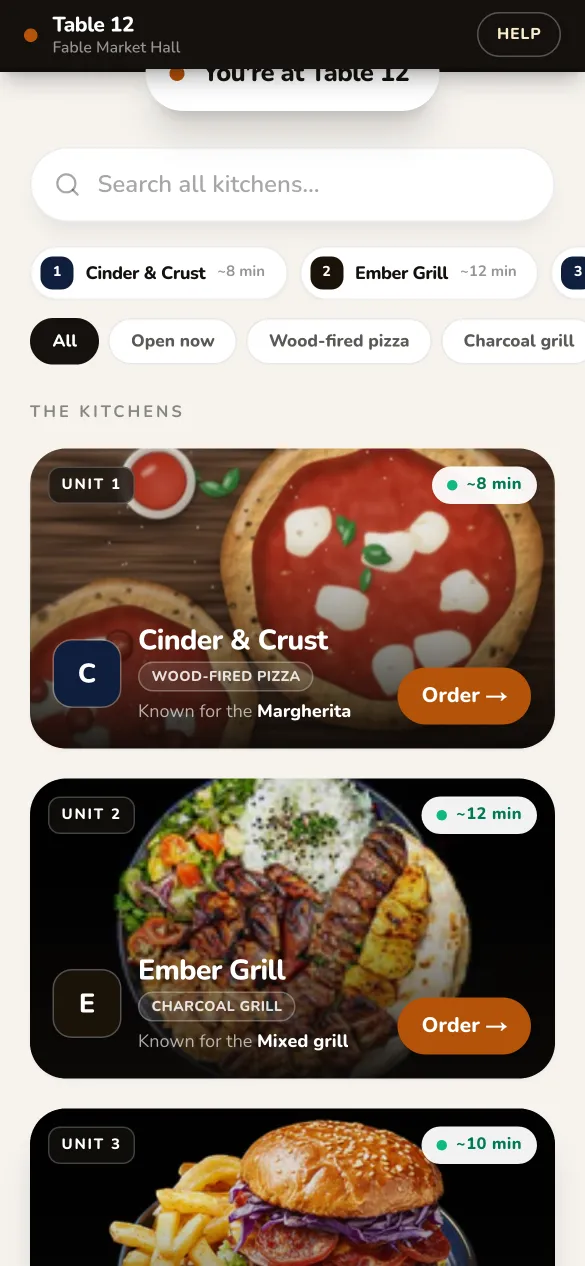
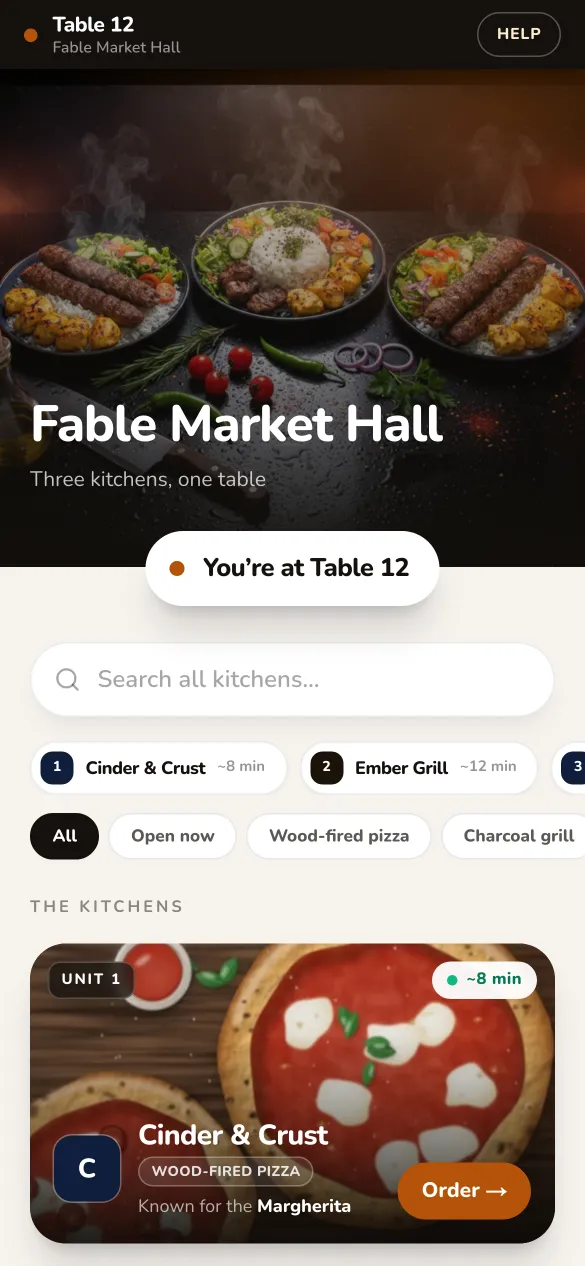
One code on each table opens the whole hall. A guest orders pizza from one kitchen and a grill from another without leaving their seat. Each kitchen gets its own paid order, with the table and the hall on the ticket.
Early access: we set your hall up with you
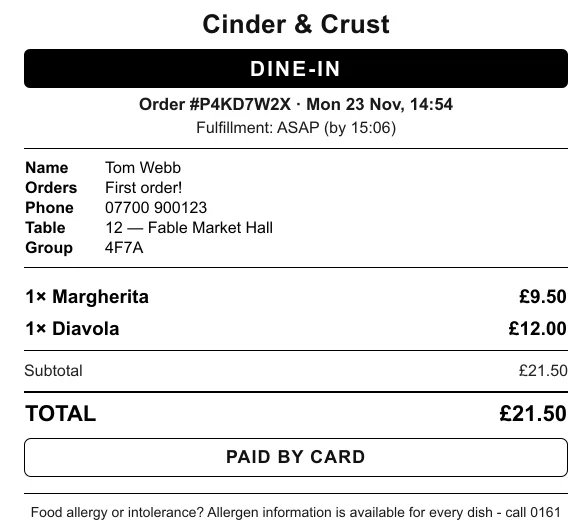
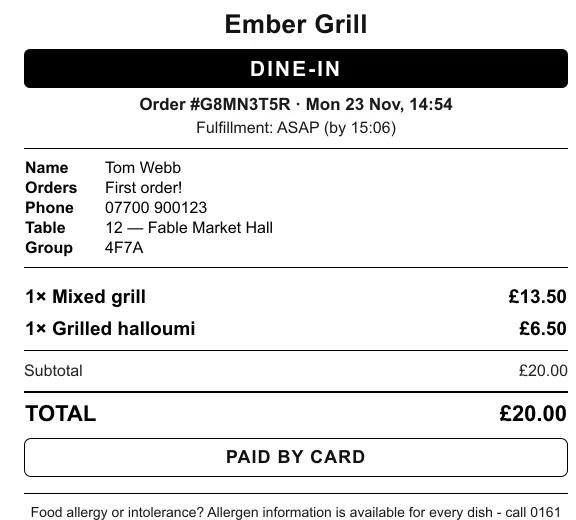
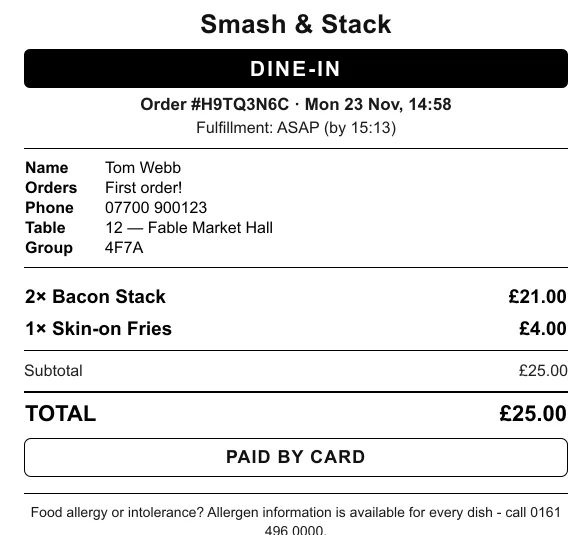
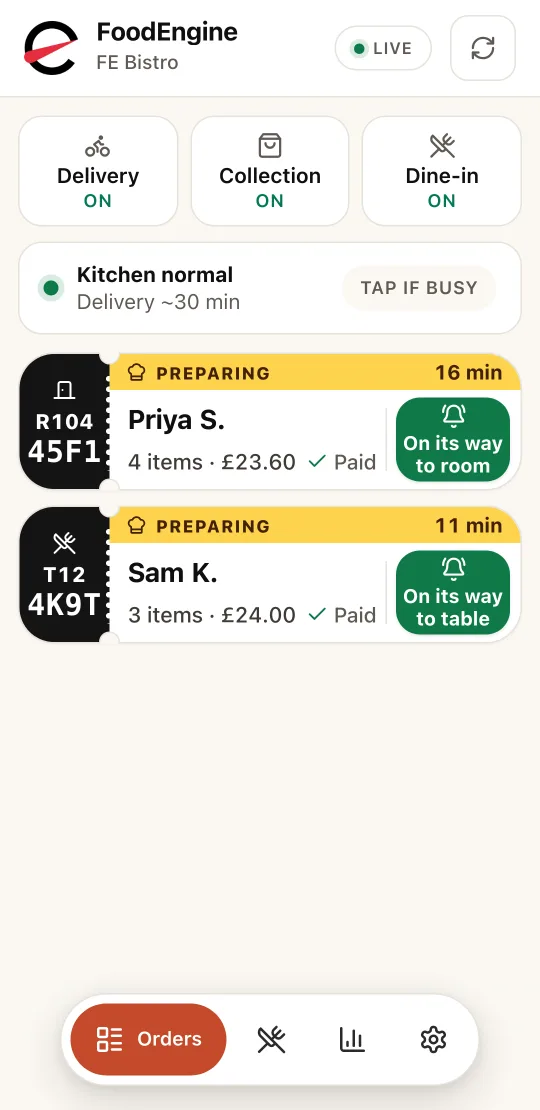
Table, room, collection and delivery orders arrive on the same board. The handheld rings, prints the ticket and tells the guest their food is on its way, in one tap.
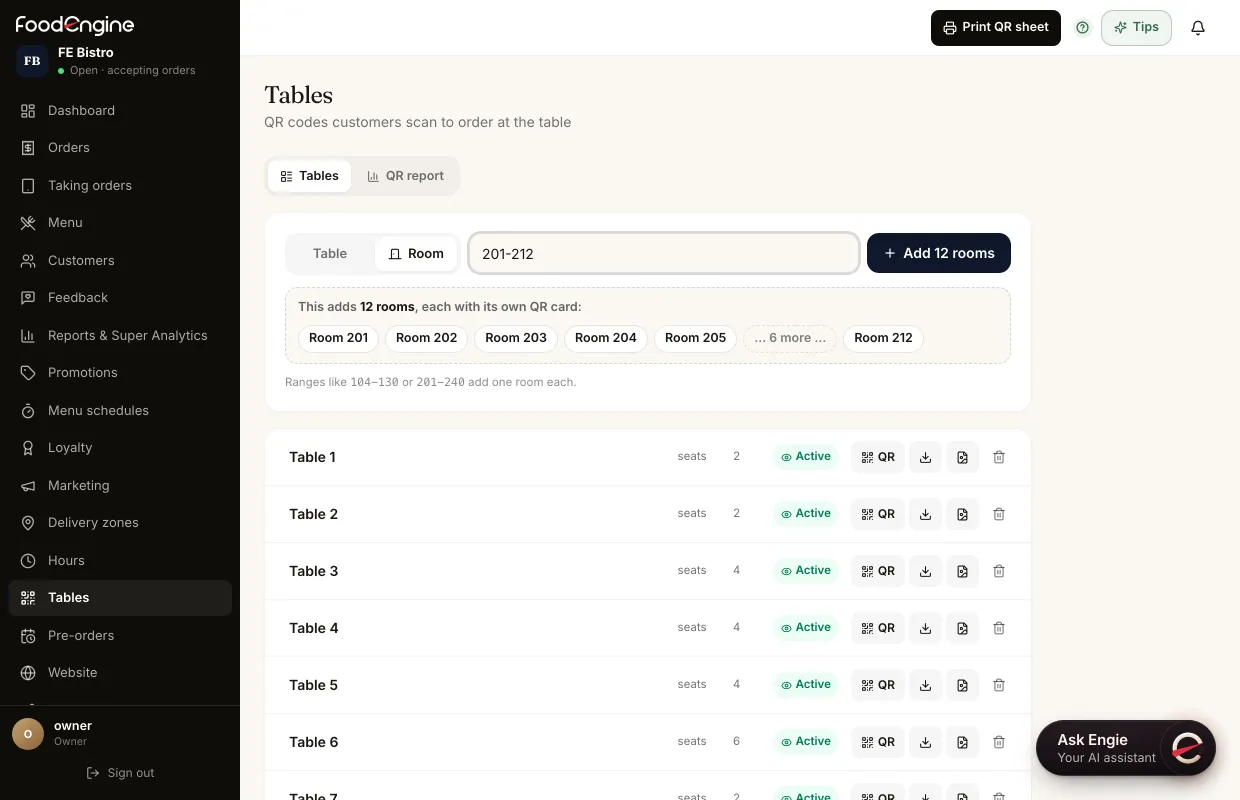
Set your tables and rooms up in minutes, print the codes yourself and see which ones are being used.
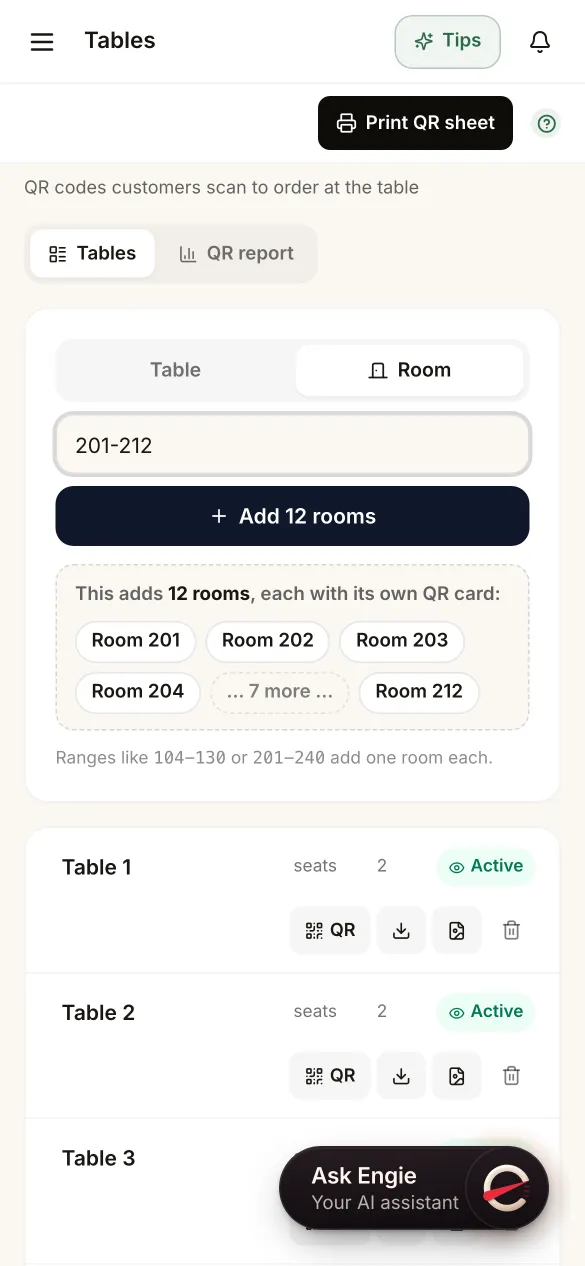
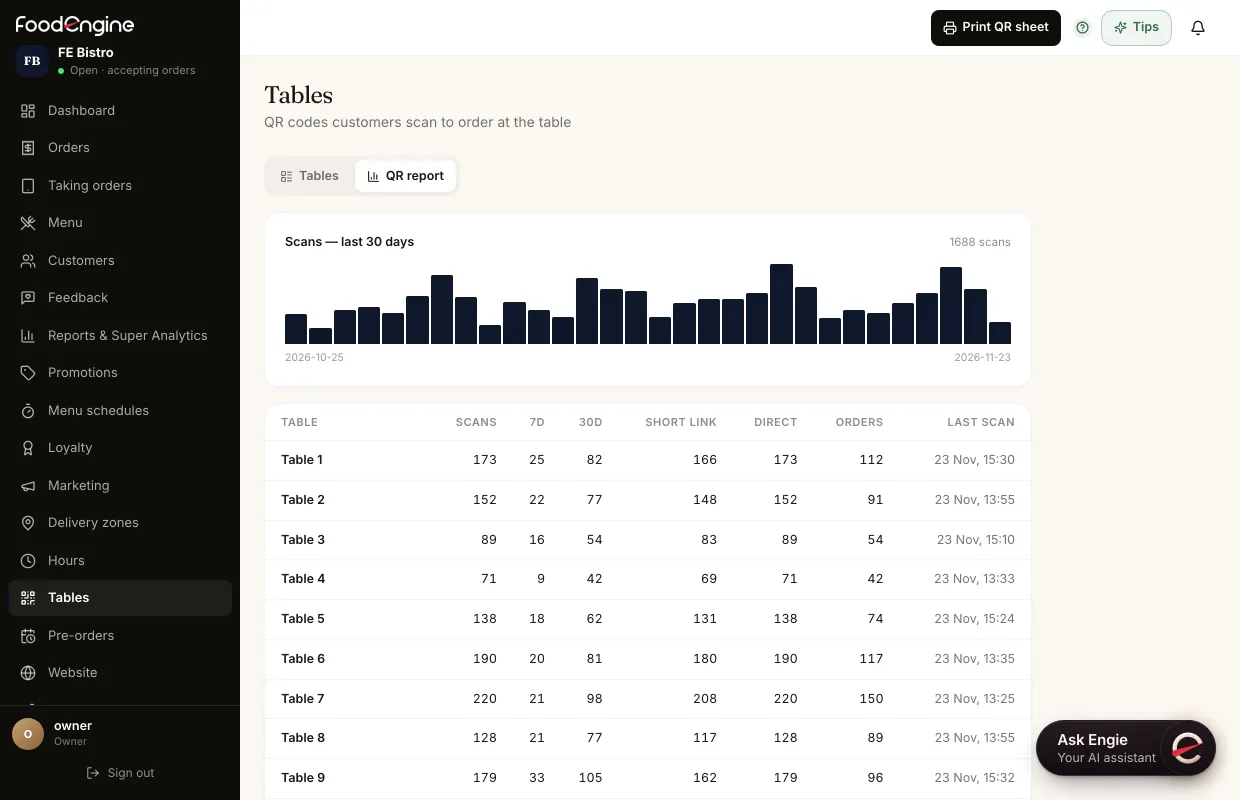
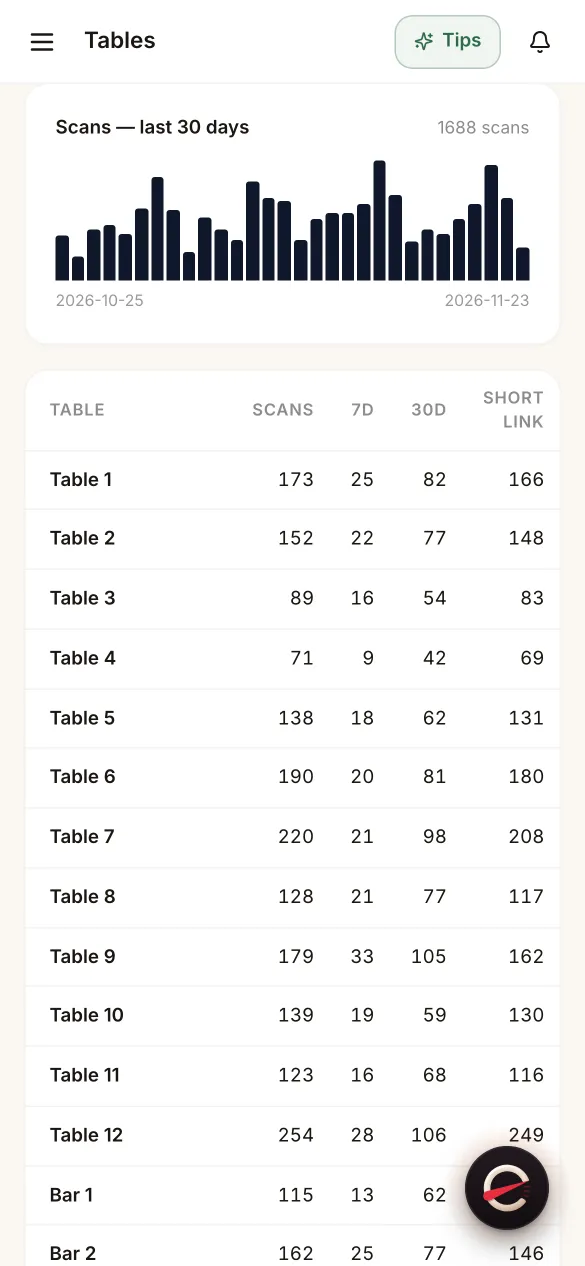
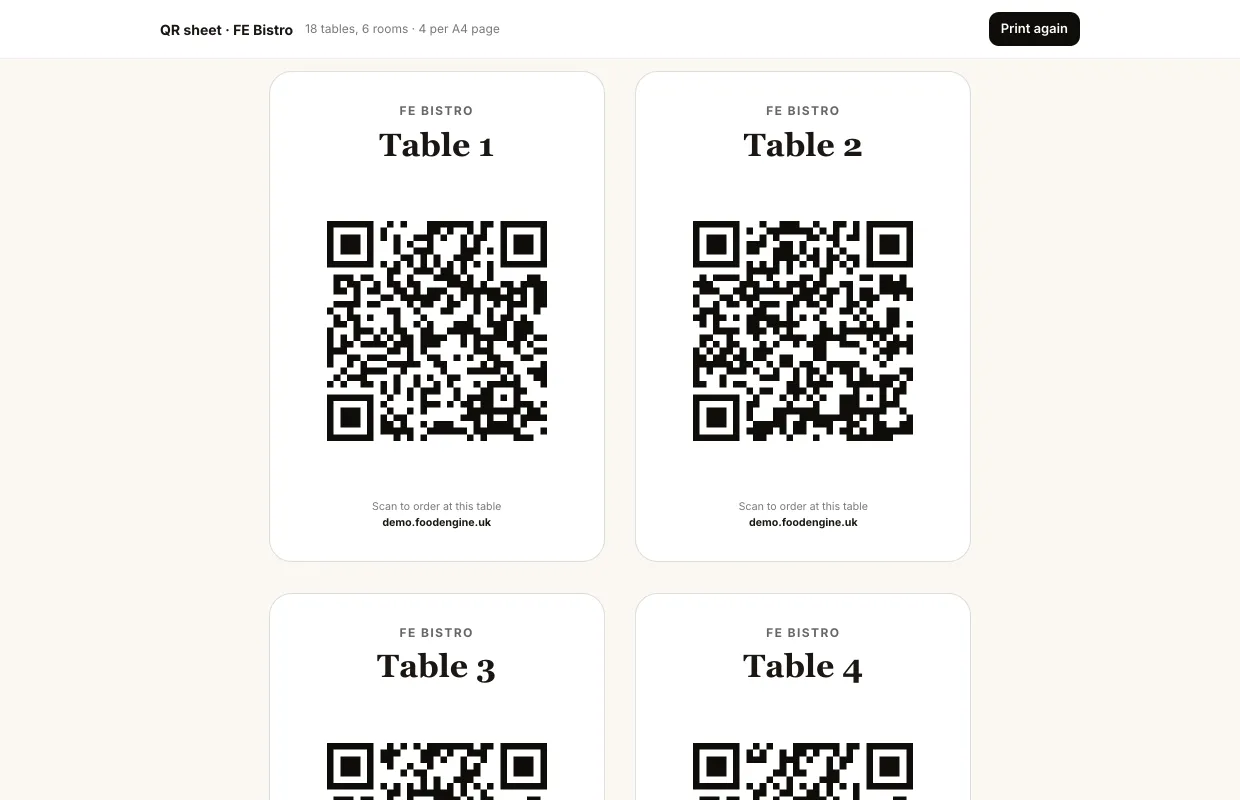
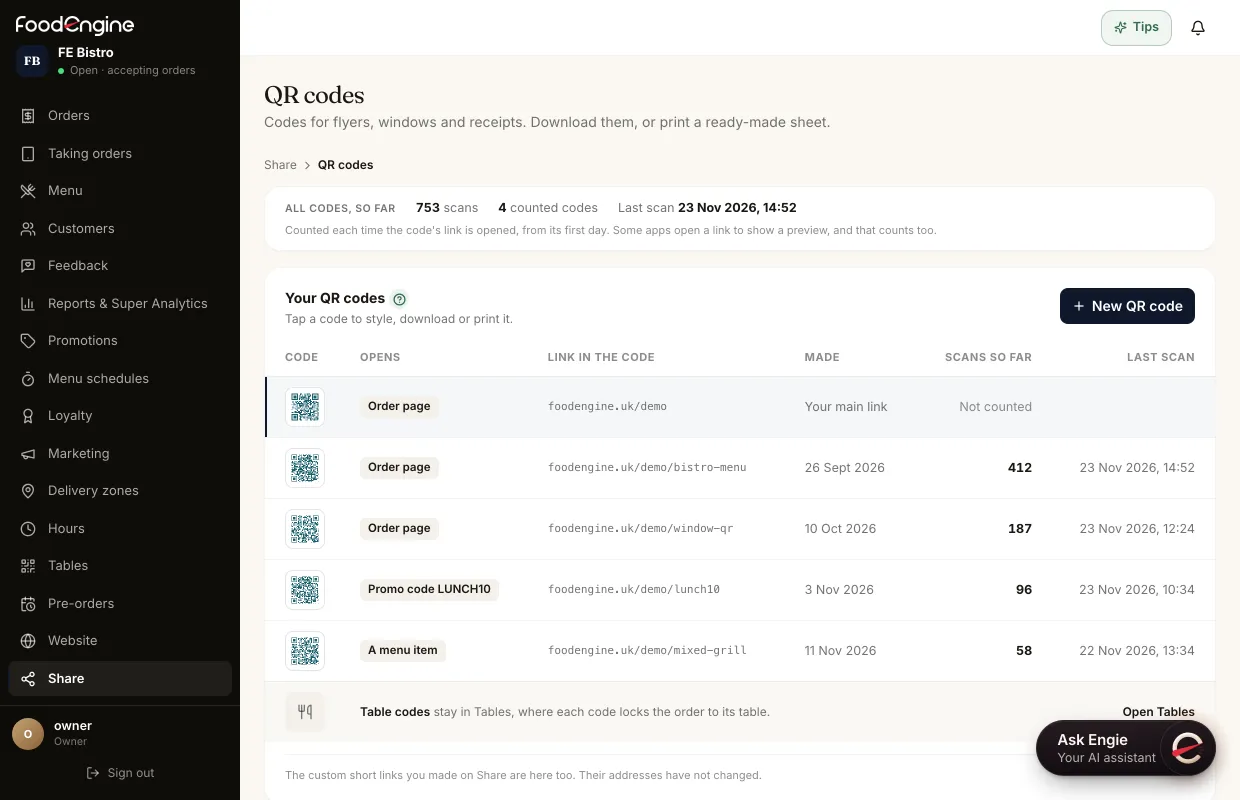
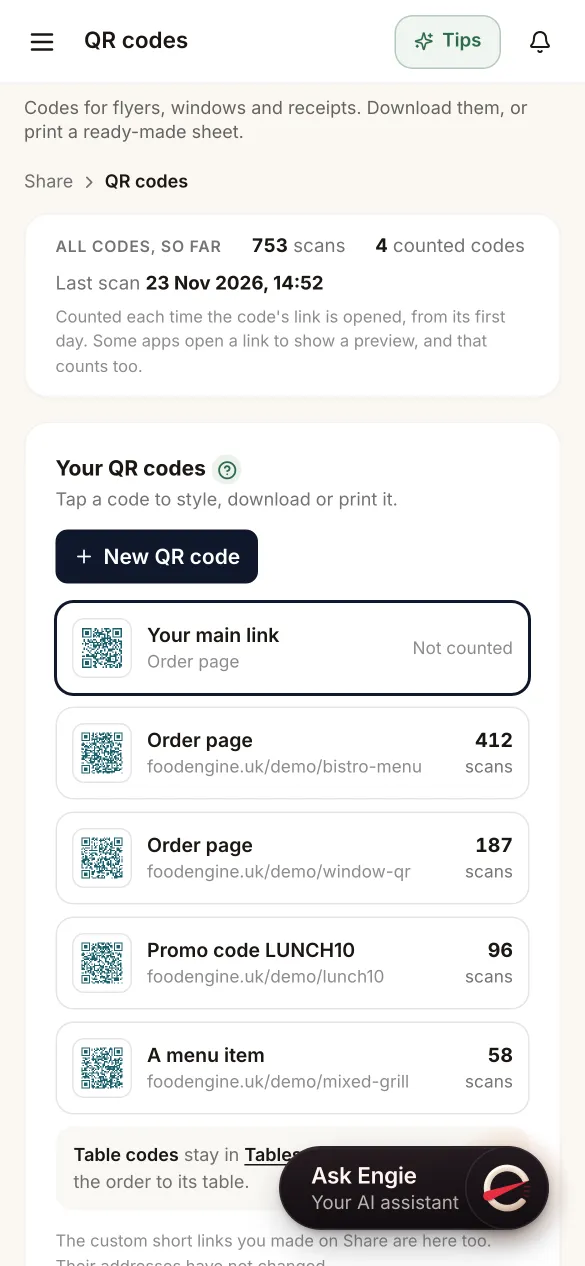
The real dashboard, on an example shop. The codes in these screens are examples
A domed disc on the table that opens your menu when a guest taps it with their phone. We have the designs, and the build comes next. Tap discs are not available yet: the QR code works today, on every phone.
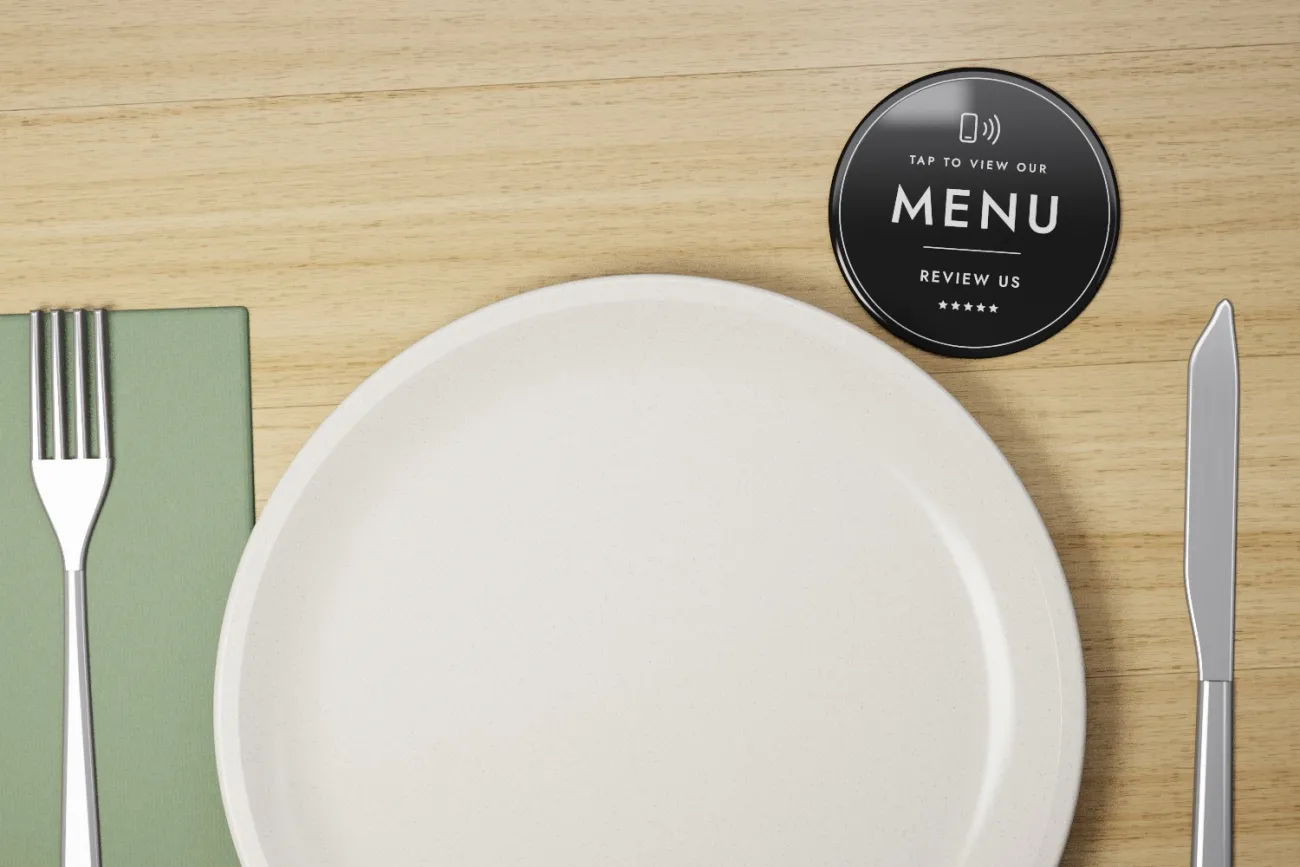
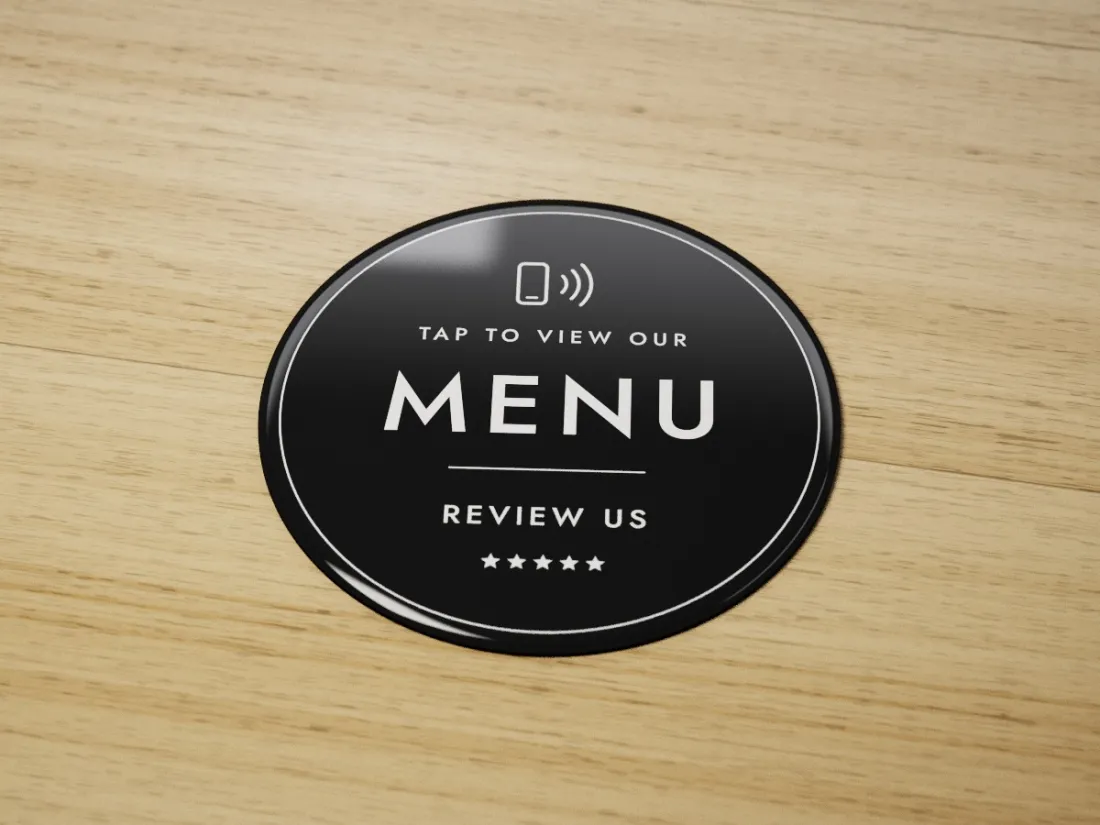
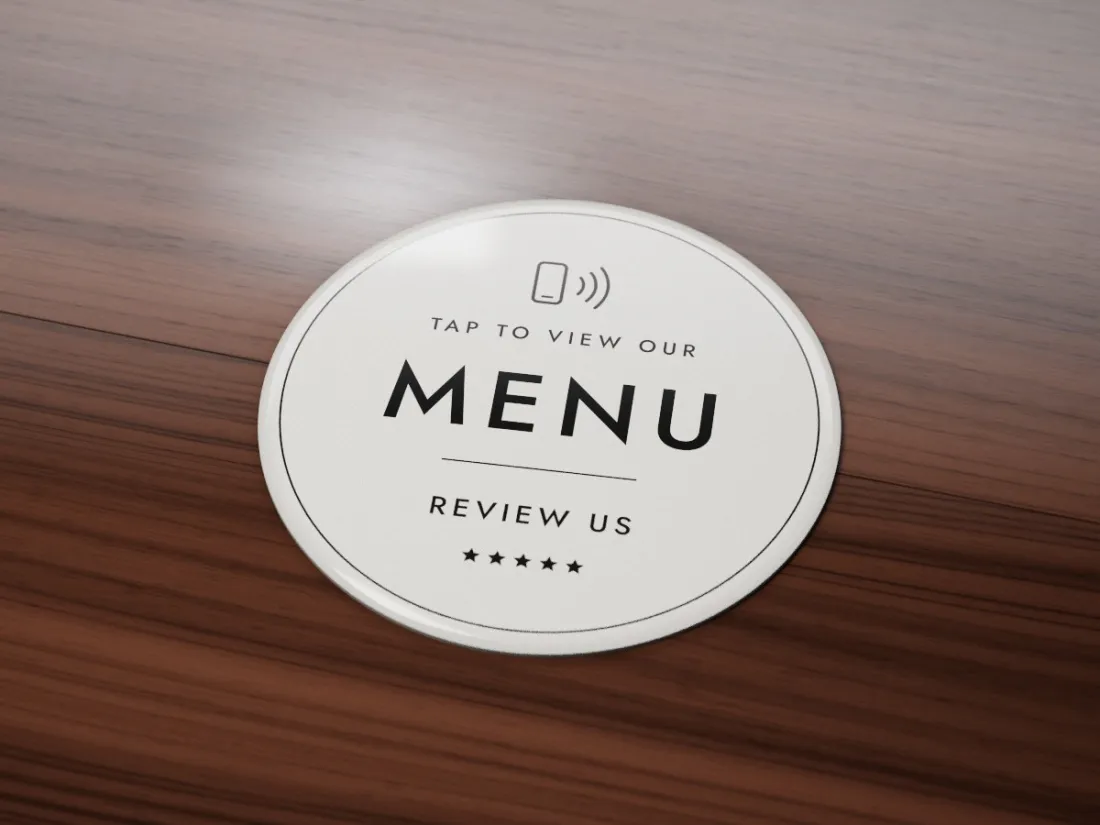
Design previews. Not for sale yet
QR ordering is part of every plan. No commission, no charge per table or per code, and no VAT added. Stripe's card fee (1.5% + 20p for UK cards) is the only per-order cost, and it goes to Stripe, not to us.
QR ordering, your website, the kitchen app and Engie AI
Start free trial£50/mo for 6 months, then £60
Everything in Starter, plus loyalty and all 13 deal types
Start free trialEverything in Growth, plus unlimited staff and 15,000 campaign emails a month
Start free trialEvery plan: 14 days free, no card to start, no setup fee, cancel any time. Compare every feature
Something else? Drop us a line
Taking delivery and collection orders too? See online ordering, restaurant websites and commission-free ordering
A guest scans the QR code on their table with their phone camera. Your menu opens in the browser, already set to that table. They choose, pay by card, Apple Pay or Google Pay, and the paid order appears on your kitchen screen and prints with the table on the ticket.
No. The code opens your menu in the phone's own browser. There is nothing to download and no account to create before ordering.
By card, Apple Pay or Google Pay, when they order. Table and room orders are paid up front, so there is no bill to chase at the end of the night. There are no open tabs, no split bills and no cash on table orders today.
QR ordering is on every plan: Starter £40, Growth £50 for your first 6 months then £60 and Pro £80 a month, with no VAT added, no setup fee and no commission. There is no charge per table, per code or per order. Stripe's standard card fee, 1.5% + 20p for standard UK cards, goes to Stripe. See every plan
Yes. Name a code after any spot, such as Bar 4 or Garden 2, and keep your drinks menu beside your food menu in the same basket. The order reaches the bar paid, with the spot on the ticket. FoodEngine does not check a guest's age, so your team checks ID when they serve, as they do now.
Yes, in early access. A room is set up like a table: add a range of rooms in one go and print a card for each. The guest sees room service to their room, pays by card and follows the order to their door. Nothing is charged to the room and there is no link to a hotel booking system. Ask us and we will switch it on for your hotel. Ask about hotels
One code on each table opens every kitchen in the hall. The guest orders from each kitchen in turn, and each order is paid to that kitchen and prints there with the table and the hall's name. One page shows the table's orders and tells the guest when each one is ready. Halls are in early access: we set yours up with you. Register a food hall
One screen. The FoodEngine kitchen app runs on an Android handheld with a built-in printer, or on a tablet with a receipt printer. Table, room, collection and delivery orders arrive on the same board.
No. FoodEngine does not plug into a till or a POS. It runs beside the one you have: orders arrive on the kitchen screen and the printer, and card payments go to your own Stripe account.
Yes. The QR report in your dashboard counts the scans for every table and room: all time, the last 7 days and the last 30 days, the last scan, and the orders each one has taken. Scans are counted without any personal details.
Fourteen days free, and no card to start. Add your tables, print the sheet and take your first table order.
No commission, no contract, cancel any time